Navigating the complexities of modern gaming setups can be a challenge for busy gamers. Ever encountered a blank screen when trying to play your favorite console game or stream a new show on your gaming monitor? This frustrating issue often boils down to High-bandwidth Digital Content Protection, or HDCP. Many gamers, particularly those balancing careers and family, simply want their tech to work seamlessly without deep dives into technical jargon. This comprehensive guide aims to demystify HDCP, explaining its importance for your gaming monitor, how to check for compatibility, and what to do if you encounter issues. We'll explore why this content protection standard is crucial for everything from 4K console gaming to streaming protected media, ensuring you maximize your valuable entertainment time. Discover practical solutions and up-to-date insights to ensure your monitor is always ready for action, allowing you to focus on the fun and relaxation gaming provides. We cover everything you need to know about gaming monitors and HDCP support, providing clear, actionable advice.
Does my gaming monitor inherently support HDCP?
Yes, most modern gaming monitors manufactured in recent years inherently support HDCP. This is particularly true for any monitor designed to handle 4K resolution or marketed for use with modern game consoles like the PS5 or Xbox Series X/S. While older monitors might support earlier versions of HDCP (like 1.4 for 1080p), newer displays almost universally include HDCP 2.2 or higher to ensure compatibility with today's protected high-definition content.
Why is HDCP crucial for console gamers and streamers?
HDCP, or High-bandwidth Digital Content Protection, is crucial for console gamers and streamers because it's a copy protection standard required by content providers. Without proper HDCP compliance across your console, monitor, and any capture cards or splitters, you won't be able to view or record protected content. For console gamers, this means preventing black screens when trying to play games with copyrighted cinematics or watch streaming apps. For streamers, compatible capture cards ensure you can share your gameplay without triggering content protection errors.
How can I verify my monitor's HDCP compliance?
Verifying your monitor's HDCP compliance typically involves checking its official product specifications, which can be found in the user manual or on the manufacturer's website. Look for an explicit mention of 'HDCP' and the version number (e.g., HDCP 2.2). A practical test is to connect an HDCP-protected source, like a modern game console or a 4K streaming device, directly to the monitor. If the content displays correctly, your monitor is HDCP compliant. If you get a black screen or an error, there's likely an incompatibility.
What are the common symptoms of an HDCP conflict?
When your gaming monitor doesn't properly support HDCP, or there's a conflict in the signal chain, you might see several common symptoms. The most frequent is a completely black screen with no video output from your source device. You might also encounter error messages on your console or PC like 'HDCP Unauthorized,' 'Content Protection Error,' or 'No Signal.' In some cases, the content might display but be downscaled to a lower resolution, such as a 4K stream reverting to 1080p, as a protective measure.
Can software or firmware updates resolve HDCP problems?
Sometimes, yes. Graphics card drivers for PCs, as well as firmware updates for your monitor or any intermediary devices like AV receivers, can often resolve HDCP compatibility issues. Manufacturers frequently release updates to improve interoperability and fix bugs, including those related to content protection handshakes. It's always a good practice to ensure all your system components have the latest software and firmware, as this can be a simple fix for frustrating HDCP errors.
Are there specific HDCP versions I should look for when buying a new gaming monitor?
For most modern content, particularly 4K and HDR, you'll want a monitor supporting HDCP 2.2 or higher. HDCP 2.2 is the industry standard required by consoles like the PS5 and Xbox Series X, 4K Blu-ray players, and major streaming services for Ultra HD content. Even if you primarily game in 1080p now, investing in a monitor with HDCP 2.2 future-proofs your setup for potential 4K upgrades and ensures seamless compatibility with all current and upcoming protected media.
Does HDCP affect PC gaming performance?
No, HDCP itself does not directly impact your PC gaming performance in terms of frame rates, input lag, or graphical fidelity. HDCP is a digital content protection mechanism that operates at the handshake level between your graphics card and monitor. Once the connection is established and content flows, it doesn't add any significant processing overhead. If you're experiencing performance issues, they are almost certainly due to your hardware, drivers, or game settings, not HDCP.
Hey fellow gamers! Ever sat down for a much-needed gaming session after a long day, eager to dive into that new cinematic adventure or chill with some friends in a cozy co-op, only to be met with a frustrating black screen or an error message like 'HDCP Unauthorized'? It's a common headache, especially for those of us balancing work, family, and our passion for gaming. With 87% of US gamers playing regularly and many dedicating 10+ hours a week, our gaming time is precious, and tech glitches are the last thing we need. We want our setups to just work, allowing us to relax, build skills, or connect with friends without jumping through hoops.
You've probably heard the term HDCP thrown around, but what exactly is it, and does your gaming monitor actually need it? In 2026, where 4K resolution is standard and streaming content is as big as gaming itself, understanding HDCP is more crucial than ever. It's a key piece of the puzzle that ensures your high-performance gaming monitor can actually display all the amazing content you want to throw at it, from the latest console blockbusters to your favorite streaming services. This guide is built for you, the busy gamer who values clear answers and practical solutions. Let's break down HDCP and make sure your monitor is always ready for prime time.
What Exactly Is HDCP and Why Does My Gaming Monitor Need It?
HDCP, or High-bandwidth Digital Content Protection, is a form of digital copy protection developed by Intel. Its primary purpose is to prevent the unauthorized copying of high-definition video and audio content as it travels from a source device (like a game console, Blu-ray player, or streaming stick) to a display device (your gaming monitor or TV). Think of it as a digital handshake between your source and your monitor, ensuring that only authorized devices can receive and display protected content.
For gamers, HDCP is essential because modern game consoles (like the PS5, Xbox Series X/S), streaming devices (Roku, Apple TV, Chromecast), and even some PC applications output content that is HDCP protected. Without proper HDCP support on your gaming monitor, these devices won't display the content, often resulting in a blank screen, a distorted image, or an error message. It's not about hindering your gameplay directly but about protecting the intellectual property of game developers and content creators. Ensuring your monitor is HDCP compliant means you can enjoy all your games and media without compatibility headaches.
How Do I Check If My Current Gaming Monitor Supports HDCP?
Verifying HDCP support on your gaming monitor is usually straightforward. The easiest way is to check the monitor's specifications on the manufacturer's website or in the user manual. Look for mentions of 'HDCP' and often a version number, like 'HDCP 1.4' or 'HDCP 2.2'. Most modern gaming monitors released in the last 5-7 years inherently support HDCP, especially those marketed for 4K resolution, which almost universally require HDCP 2.2.
Another practical method is to simply connect an HDCP-protected device (such as a PS5, Xbox Series X, or a streaming stick like a Fire TV) directly to your monitor. If you get a clear picture and sound, your monitor likely supports HDCP. If you encounter a black screen or an error message, there's a good chance of an HDCP incompatibility. For PC users, your graphics card control panel (NVIDIA Control Panel or AMD Radeon Software) might also provide information about the HDCP status of your connected displays, though this is often more about the GPU's capability than the monitor's.
What Happens If My Gaming Monitor Doesn't Support HDCP?
If your gaming monitor doesn't support the required HDCP version for the content you're trying to display, you'll typically face one of a few frustrating scenarios. The most common outcome is a black screen, often accompanied by an error message on the source device (like 'HDCP error' or 'Content Protection error'). You might also experience a degraded resolution, where a 4K signal is downscaled to 1080p, or even just audio without any video. This is the content protection system doing its job by preventing unauthorized display or recording.
This issue frequently impacts console gamers trying to play cinematic story modes or stream popular titles that contain copyrighted material. Similarly, anyone attempting to watch movies or TV shows from streaming apps or Blu-ray players on a non-HDCP compliant monitor will hit a wall. It's a stark reminder that while high refresh rates and low response times are crucial for gaming performance, basic content compatibility is equally vital for a complete entertainment setup.
Can I Bypass HDCP on My Gaming Monitor?
Bypassing HDCP is generally not recommended and can be legally problematic. Devices designed to strip or circumvent HDCP protection are often referred to as HDCP strippers or splitters. While some older, non-compliant hardware might accidentally or intentionally remove the HDCP signal, using such devices for circumventing content protection can violate copyright laws and terms of service for various platforms.
Instead of trying to bypass HDCP, the better and more legal solution is to ensure all components in your signal chain—from your source device to your monitor, including any AV receivers or capture cards—are fully HDCP compliant. Investing in a monitor that officially supports the necessary HDCP version (especially HDCP 2.2 for 4K content) is the most reliable way to avoid these issues. For gamers who stream, many capture cards have built-in HDCP handling or specific modes that allow recording without triggering content protection issues, but this varies by device and platform.
Does HDCP Affect Gaming Performance or Input Lag?
No, HDCP itself does not directly affect your gaming performance, such as frame rates (FPS), resolution, or input lag. HDCP is a digital handshake and encryption protocol that happens at the beginning of the signal transmission. Once the handshake is established and the content is flowing, HDCP doesn't introduce any measurable latency or processing overhead that would impact your gaming experience. Your monitor's refresh rate, response time, and your PC's or console's hardware are the primary factors influencing performance.
The only 'impact' is when HDCP fails, preventing content from displaying at all. So, if you're experiencing input lag or low frame rates, it's almost certainly due to other factors in your setup – like an outdated graphics card, poor network connection for online games, or incorrect display settings – not HDCP. Gamers who are mindful of every millisecond can rest assured that once the picture is on screen, HDCP isn't slowing them down.
Which HDMI and DisplayPort Versions Include HDCP?
HDCP has been integrated into digital display interfaces for quite some time. All versions of HDMI (from 1.0 up to the latest 2.1) technically support some form of HDCP. Similarly, DisplayPort also incorporates HDCP. However, the *version* of HDCP matters significantly, especially as content resolutions and quality have increased:
- HDMI 1.0 - 1.3: Supported HDCP 1.0 to 1.3. Sufficient for 1080p content.
- HDMI 1.4: Supported HDCP 1.4. Also good for 1080p and early 4K (30Hz) content.
- HDMI 2.0: Supports HDCP 2.2. This is the crucial version for most modern 4K content (up to 60Hz) and is widely adopted by current consoles and streaming devices.
- HDMI 2.1: Supports HDCP 2.2 (and future versions). Essential for 4K 120Hz, 8K content, and other advanced features like VRR.
- DisplayPort: Generally supports HDCP 1.3 and later versions. Most modern DisplayPort 1.2, 1.4, and 2.0 implementations support HDCP 2.2, making them perfectly suitable for protected 4K gaming and media.
When choosing a monitor, especially for 4K gaming, always confirm it specifies HDCP 2.2 compatibility on its HDMI or DisplayPort inputs. This ensures future-proofing for your entertainment needs.
I'm Buying a New Gaming Monitor, What HDCP Version Should I Look For?
If you're upgrading your gaming setup, which many US gamers are doing on a budget to balance performance with value, ensuring proper HDCP support is key. For a new gaming monitor in 2026, you absolutely want to look for one that supports **HDCP 2.2 or higher**. This is the current standard for displaying 4K Ultra HD content from virtually all modern sources, including:
- PlayStation 5 and Xbox Series X/S consoles
- 4K Blu-ray players
- Netflix, Disney+, Amazon Prime Video, and other major streaming services when watching 4K content
- Many PC games with protected cinematics or streaming applications
Even if you're primarily a 1080p gamer now, investing in a monitor with HDCP 2.2 will future-proof your setup for when you eventually upgrade to 4K content or next-gen consoles. Many excellent value-for-money gaming monitors in the 27-32 inch range at 1440p or 4K resolutions come with HDCP 2.2 built-in, so you shouldn't have to break the bank for this essential feature.
Troubleshooting HDCP Issues on My Gaming Setup, What Are the Steps?
Hitting an HDCP wall can be frustrating, but many issues are solvable. Here's a quick troubleshooting guide for the busy gamer:
Power Cycle Everything: Unplug all devices (monitor, console, PC, receiver, etc.) from their power source for 30 seconds, then plug them back in. This often resets the HDCP handshake.
Check Cables: Ensure you're using high-quality, certified HDMI or DisplayPort cables. Old or cheap cables might not reliably transmit the HDCP signal, especially for 4K. Try swapping out the cable.
Direct Connection: If you're using an AV receiver, splitter, or capture card, try connecting your source device (console/PC) directly to your monitor. If this works, the problem lies with an intermediary device.
Update Drivers/Firmware: Make sure your graphics card drivers (for PC) are up to date. Also, check your monitor manufacturer's website for any firmware updates. Sometimes, HDCP compatibility improvements are included.
Verify HDCP Support on All Devices: Ensure every device in your chain (source, intermediary, display) supports the necessary HDCP version. An old HDMI switch could be the culprit.
Console Settings: For consoles like PS5, check display settings. Some allow you to temporarily disable HDCP (e.g., for capture cards), but this will prevent playback of protected media.
Remember, patience is key. Most HDCP issues are a simple matter of a faulty handshake or an incompatible component in the chain.
Does Streaming to Platforms Like Twitch or YouTube Require HDCP?
This is a common question for gamers who love to share their experiences. Generally, when you're streaming gameplay from a PC directly to platforms like Twitch or YouTube, HDCP is less of a concern. Your PC's graphics card outputs directly, and the streaming software captures that output. However, if you're streaming from a console (like a PlayStation or Xbox) via a capture card to your PC, HDCP can absolutely come into play.
Most modern capture cards (like those from Elgato or AverMedia) are designed to handle HDCP, allowing you to capture console gameplay even if HDCP is active. Some consoles even offer an option to disable HDCP in their settings, specifically for capturing gameplay, though this might restrict your ability to view streaming apps on the console while that setting is active. Always check your capture card's specifications and your console's settings for the most seamless streaming experience. It's all about ensuring your setup allows you to balance fun and sharing.
Are Older Console Generations Affected by HDCP on Modern Monitors?
While HDCP has been around for a while, older console generations (like the PS3 or Xbox 360) primarily used earlier versions of HDCP, typically 1.x. Modern gaming monitors, especially those supporting 4K, are generally backward-compatible with these older HDCP versions. So, connecting an Xbox 360 to a brand-new monitor with HDCP 2.2 shouldn't be an issue for basic gameplay.
The potential conflicts usually arise when trying to play specific protected content on these older consoles (like Blu-rays on a PS3) or when an intermediary device in the signal chain (an old HDMI splitter, for instance) only supports an older HDCP version and fails to pass the newer handshake required by a modern monitor. For pure gaming from older consoles, you'll generally be fine, but always ensure a direct connection if you suspect problems to isolate the issue.
Will My PC Gaming Experience Be Impacted by HDCP?
For the vast majority of PC gaming, HDCP has virtually no impact. PC games themselves rarely utilize HDCP for their core gameplay or graphics output. You can enjoy your favorite competitive shooters, grand strategy games, or immersive RPGs without worrying about HDCP compatibility. Your graphics card and monitor work together to display the game seamlessly.
Where HDCP might briefly come into play on a PC is when you're using your gaming monitor to watch protected streaming services (Netflix, Hulu, etc.) through your web browser or dedicated app. In these cases, your PC's GPU will perform the HDCP handshake with your monitor to allow the content to play. If there's an issue here, it's usually easily resolved by ensuring your graphics drivers are up to date and your cables are sound. So, focus your PC gaming concerns on frame rates and latency, not HDCP.
FAQ Section
What is the minimum HDCP version for 4K streaming?
For 4K Ultra HD streaming and content, you need HDCP 2.2. This version is required by virtually all modern 4K devices and streaming services to ensure secure transmission of high-resolution copyrighted media.
Can I use an HDMI to DisplayPort adapter with HDCP?
Yes, but it depends on the adapter. Active adapters that convert HDMI to DisplayPort typically need to support HDCP themselves to pass the signal correctly. Passive adapters often struggle or fail with HDCP-protected content.
Does HDCP affect HDR content?
Yes, HDCP is crucial for HDR (High Dynamic Range) content. As HDR content is often also 4K and protected, it will require HDCP 2.2 (or higher) throughout the signal chain to display correctly.
Why do I get a black screen when connecting my PS5 to my monitor?
A black screen when connecting a PS5 to your monitor is a classic symptom of an HDCP issue. Ensure your monitor and any connected intermediary devices (like capture cards or HDMI switches) fully support HDCP 2.2.
Is HDCP 1.4 enough for 1080p gaming?
Yes, HDCP 1.4 is perfectly sufficient for 1080p gaming and general 1080p content consumption. Most 1080p monitors and devices use this standard without issues.
Do all gaming laptops support HDCP on their external monitor outputs?
Most modern gaming laptops will support HDCP on their external HDMI or DisplayPort outputs. The graphics card within the laptop handles this, and typically, any laptop capable of decent gaming will meet HDCP requirements for external displays.
Can a faulty HDMI cable cause HDCP errors?
Absolutely. A low-quality or damaged HDMI cable can fail to maintain the necessary HDCP handshake, leading to black screens or intermittent signal loss. Always use certified, high-quality cables for reliable connections.
Will a monitor firmware update fix HDCP issues?
Sometimes, yes. Monitor manufacturers occasionally release firmware updates that address compatibility issues, including those related to HDCP. It's always worth checking your monitor's support page for the latest firmware.
Conclusion
Understanding HDCP might seem like another technical hurdle in the world of gaming, but as we've explored, it's a fundamental component for enjoying all your digital content without frustrating interruptions. For the average gamer, especially those balancing a busy life, the key takeaway is simple: ensure your gaming monitor (and any devices in between) supports HDCP, specifically HDCP 2.2 for 4K content. This proactive step saves you precious gaming time and guarantees a smooth, enjoyable experience whether you're dominating in multiplayer, getting lost in a single-player epic, or just unwinding with a movie. Don't let a simple handshake hold you back from your fun.
What's your biggest gaming setup challenge, beyond HDCP? Comment below!
Most modern gaming monitors do support HDCP, which is essential for displaying protected content from consoles and streaming services. If your monitor lacks HDCP, you may experience black screens or error messages for copyrighted media. You can check HDCP support in your monitor's specifications or by testing with a protected source. Troubleshooting often involves updating drivers, checking cables, and ensuring all devices in the chain are HDCP compliant. HDCP 2.2 is crucial for 4K content.
35

LG UltraGear Evo Gaming Monitor Lineup Announced Ahead Of CES 2026 27 . LG UltraGear Evo Gaming Monitor Lineup Announced Ahead Of CES 2026 27 . Chinese ESports Firm Worked With AMD On 1 000 Hz Gaming Monitor Primed . LG UltraGear Evo Gaming Monitor Lineup Announced Ahead Of CES 2026 27 . Best 480Hz Monitor 2026 Buying Guide Display Ninja Best Gaming Monitors


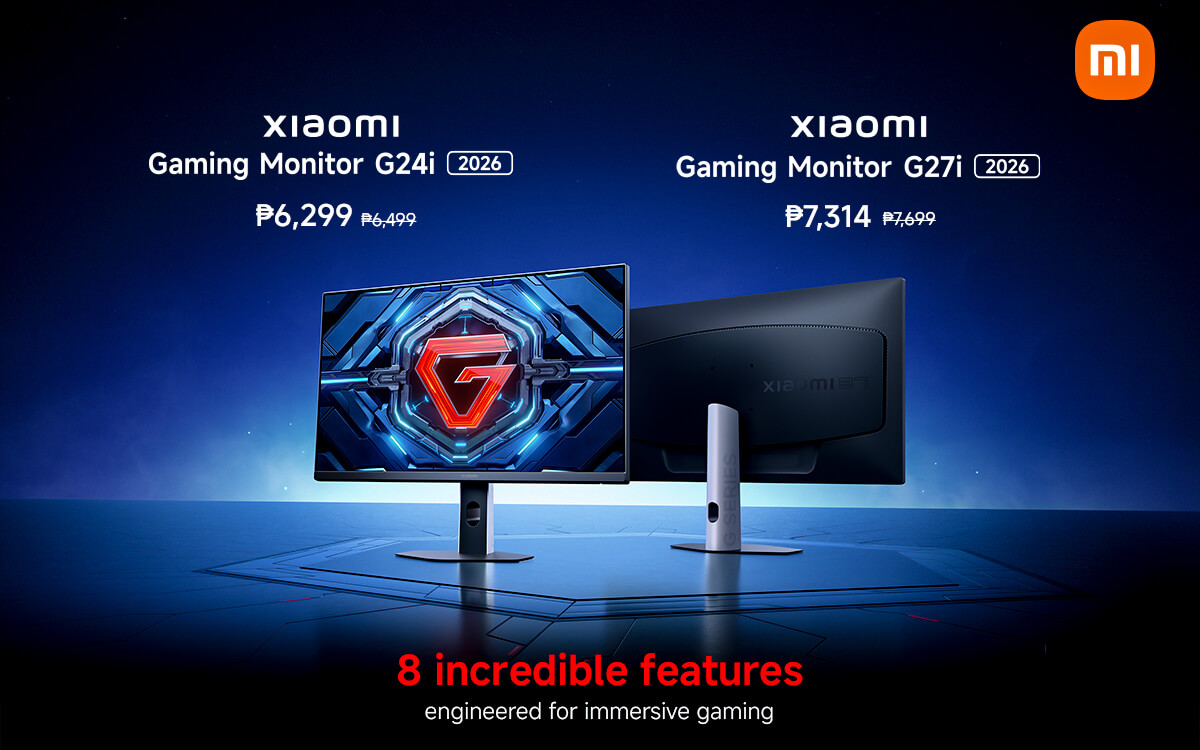
Xiaomi Launches Redmi G27Q 2026 Gaming Monitor At Just 112 Boasts 2K Redmi G27Q 2026 Featured . Xiaomi G24i 2026 G27i 2026 Gaming Monitors Launched Globally Xiaomi Xiaomi Gaming Monitor G24i 2026 G27i 2026 Q2XM0.webp. Gaming Monitor Guide 2026 Everything You Need To Know London Daily News Gaming Monitor Guide 2026 Everything You Need To Know11. 15 Best Gaming Monitors Of 2026 Ultimate Picks For Seamless Play Top Gaming Monitors 2026 H3rit . Xiaomi Launches G24i 2026 And G27i 2026 Gaming Monitors In The Xiaomi Launches G24i 2026 And G27i 2026 Gaming Monitors In The Philippines


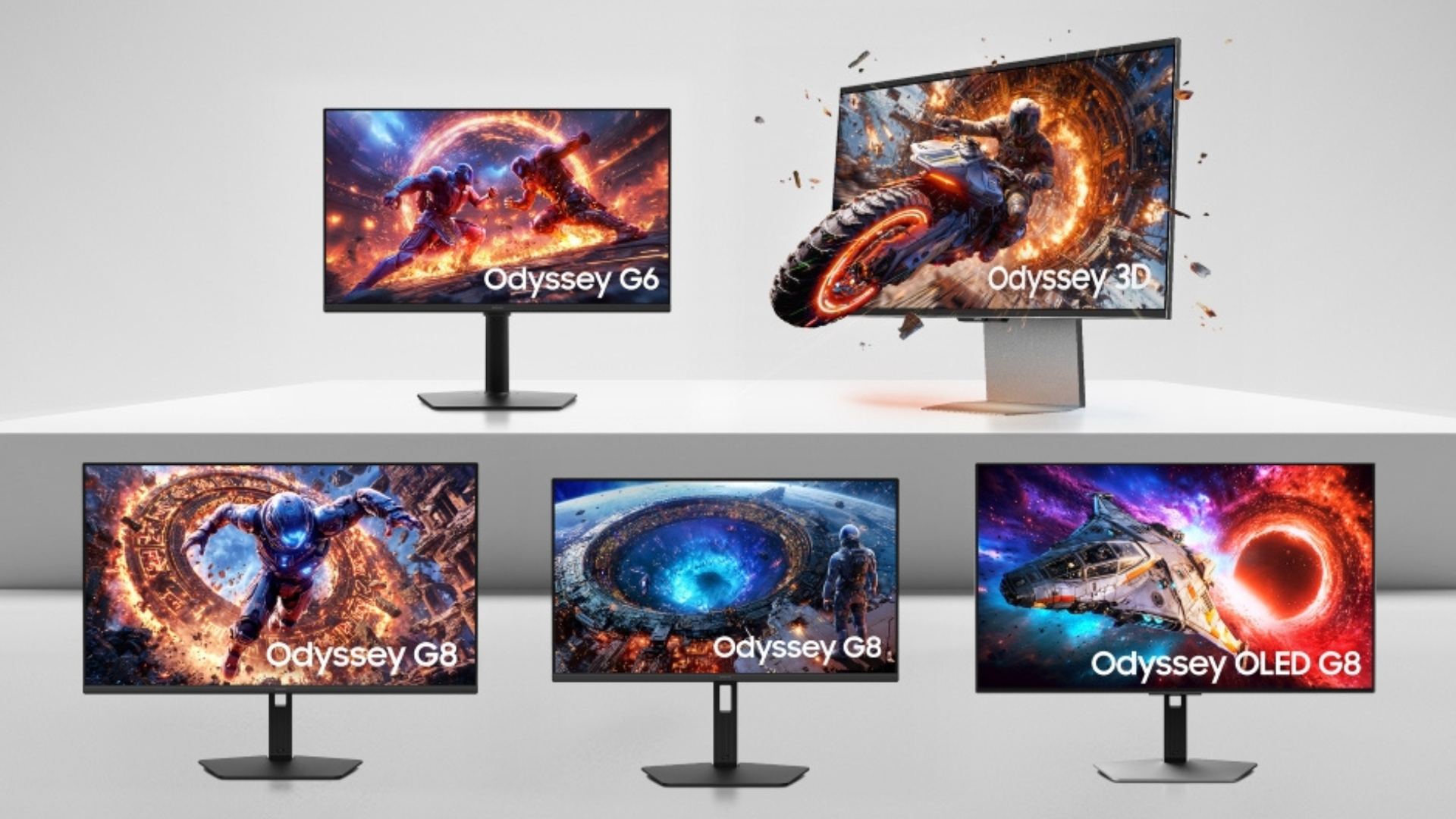
Best 20 Inch Monitor Uk Corsair Xeneon 34wqhd240 C Qd Oled 3p76 . 15 Best Gaming Monitors Of 2026 For Smoothest Gameplay And Stunning Top Gaming Monitors 2026 Moiql . How To Choose A Gaming Headset In 2026 Competitive FPS Immersion And. The Best Recommended Gaming Monitors 2026 TFTCentral 1 2 . LG UltraGear Evo Gaming Monitor Lineup Announced Ahead Of CES 2026 27
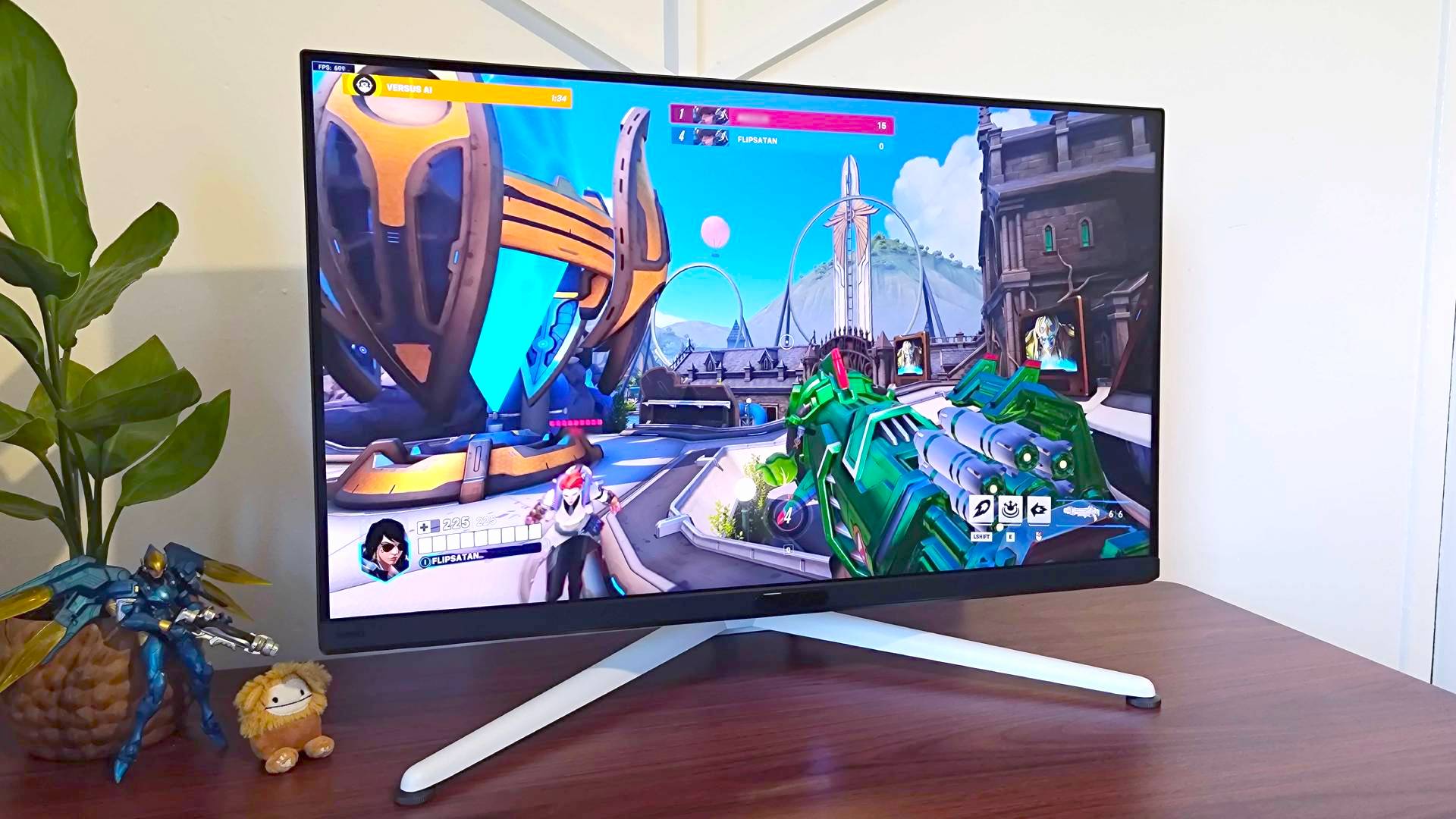


The Best Gaming PC 2026 UK Builds At The Cheapest Prices GamesRadar . Round Up All The Latest Awesome 2026 Monitors From MSI At CES 2026 Msi Ces 2026 Website Featured . KTC H27T22 Review 2026 Value 1440p 165Hz Gaming Monitor Best USB C Gaming Monitors . The Best OLED Gaming Monitors To Buy In 2026 TFTCentral Best Oled Gaming Monitors Thumbnail 2025 No Title 2 . LG UltraGear Evo Gaming Monitor Lineup Announced Ahead Of CES 2026 27

Samsung S 2026 OLED TVs And Odyssey Gaming Monitors Get Nvidia G Sync 399816 Samsung Oled Tv 1200x675 . KTC H27T22 Review 2026 Value 1440p 165Hz Gaming Monitor Best Monitors For FPS Games . Samsung Monitors Are Calling The Shots At The 2026 Winter Olympic Games Samsung Monitors Support Real Time Officiating And Broadcast Operations At Olympic Winter Games Milano Cortina 2026 1 1200x675 . What Is HDCP Content Protection And How To Fix Errors Boomset Gaming Consoles . What Is HDCP Content Protection And How To Fix Errors Boomset Blu Ray Players 1536x864


Output Device Does Not Support HDCP How To Fix It Properties Dialog Modernized 1024x641 . Output Device Does Not Support HDCP How To Fix It OpenAI Image V2 1024x576 . BEST 1440P GAMING MONITORS IN 2025 2026 PC Explorers Best 1440p Gaming Monitors For Gaming In 2025 2026 1024x576 . What Is HDCP Content Protection And How To Fix Errors Boomset Monitors . The Best Gaming Monitors For PlayStation 5 In 2026 The Best Cheap Gaming Monitors For 2026 B4ek.640




Best USB C Gaming Monitors 2026 Guide Reviews Best Monitors With Built In KVM Switch 768x432 . Gigabyte GS34WQC Review 2026 Budget UltraWide Monitor Best HDR Monitors 1024x576 . Top 7 Gaming Monitors For FPS Games In 2026 Under 15k Frontech Online The Best Gaming Monitor Frontech . MSI Launches A Gaming Monitor In With NVIDIA And New MSI Gaming Monitor CES 2026 1420x799 . The Best Gaming Monitors For 2026 57 6770317 Urbu.1920